
Why I Built Blinky: Saving My Eyes from 14-Hour Coding Sessions
If you’re anything like me, you’ve probably sat down “just for a minute” to fix a single bug, only to look up hours later with burning eyes and a headache. When you’re deep in the zone, everything outside the monitor disappears—including your body’s basic need to blink.
A few days ago, after pulling an all-nighter, my eyes felt like they were filled with sand. I realized I was barely blinking while staring at my IDE for 10-14 hours a day. The standard advice is the “20-20-20 rule”: every 20 minutes, look at something 20 feet away for 20 seconds.
It sounds simple. But tracking that manually? Impossible.
I tried a few existing apps, but they were either full-screen lockouts that violently interrupted my workflow or annoying alarms that I immediately dismissed out of frustration. I needed something native, lightweight, and genuinely helpful. So, as any developer would, I decided to build my own solution: Blinky.
Building the Solution
I’d never built a macOS app before, so I spent some time researching the options. I chose to build Blinky as a native macOS menu bar app using Swift and SwiftUI. I wanted it to feel like a hidden part of the OS—there when you need it, invisible when you don’t.
I used AI coding agents to help me build the whole thing — from scaffolding the project to iterating on the UI and logic.
Here’s a look under the hood at how Blinky works:
1. A Lightweight Footprint
Blinky lives in the menu bar (MenuBarExtra). It doesn’t clutter the dock and uses virtually zero resources. To make it feel truly native, I built a custom premium dropdown menu with smooth hover states, animated scaling effects, and SF Symbols for a polished aesthetic. For scheduling, I implemented a ReminderService backed by a Swift Timer that triggers based on a user-defined interval.
2. The Non-Intrusive Reminder
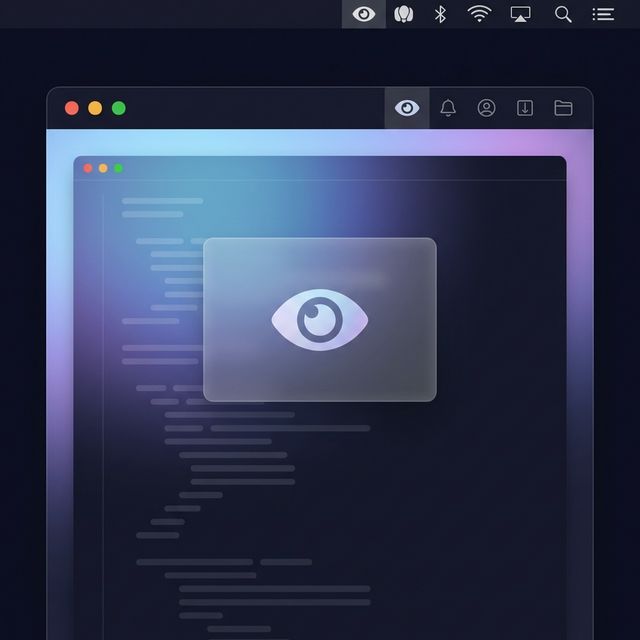
When the timer hits, Blinky doesn’t hijack your entire screen. Instead, I used NSWindow with .level = .floating to gently slide down a beautifully frosted, translucent reminder card. It prompts you to perform a simple task: blink 5 times, then look away for a user-configurable duration (defaulting to 20 seconds).
The UI leverages macOS’s visual vibrancy materials (.ultraThinMaterial) and SwiftUI’s .spring animations so it feels organic. It features a tiny eyelid animation (using scale and opacity transitions) that guides your blinks before starting the countdown timer. To accommodate different rhythms, I even built a configurable “Blink Speedometer” right into the settings menu, which dynamically scales the animation step delays from a relaxing 0.5x up to a brisk 2.0x speed.
3. Gamifying Eye Health
To actually stick with the habit, I needed a dopamine hit. So, I built a StorageService using UserDefaults to track “Lifetime Blinks,” daily breakdowns, and “Streaks.”
I structured the stats mapping ISO8601 date strings to integer counts ([String: Int]). Now, opening the menu bar doesn’t just show technical settings—it shows a 7-day animated bar chart of my eye-care consistency. It sounds silly, but seeing my daily blink count go up genuinely motivates me not to click “Skip.”
4. Smart Restraints
To prevent the app from becoming annoying, I added smart capabilities. If I step away from my laptop (CGEventSourceSecondsSinceLastOSEvent and screen lock listeners), Blinky auto-pauses so it doesn’t log false reminders. Even better, if my break exceeds 15 minutes, Blinky completely resets the timer schedule so I’m not immediately bombarded with an alert when I sit back down. If I’m screen sharing or in a critical meeting, I can quickly hit a “Pause for 1 hour” or “Pause for Today” button, backed by a simple Date check (pauseUntilTomorrow) that defers the timer sequence entirely.
The Result
Since building and using Blinky, my eye strain has drastically decreased. The 20-minute reminders force me to break my hyper-focus just long enough to let my eyes reset, without derailing my train of thought.
Building it taught me a lot about SwiftUI’s window lifecycle limitations and how to gracefully handle macOS activation policies (no one likes an app that steals focus while typing).
If your eyes are burning right now, maybe it’s time to take a break. Better yet, maybe it’s time to let a lightweight app remind you.