How I Built a Browser Game You Can Play With a PlayStation Controller
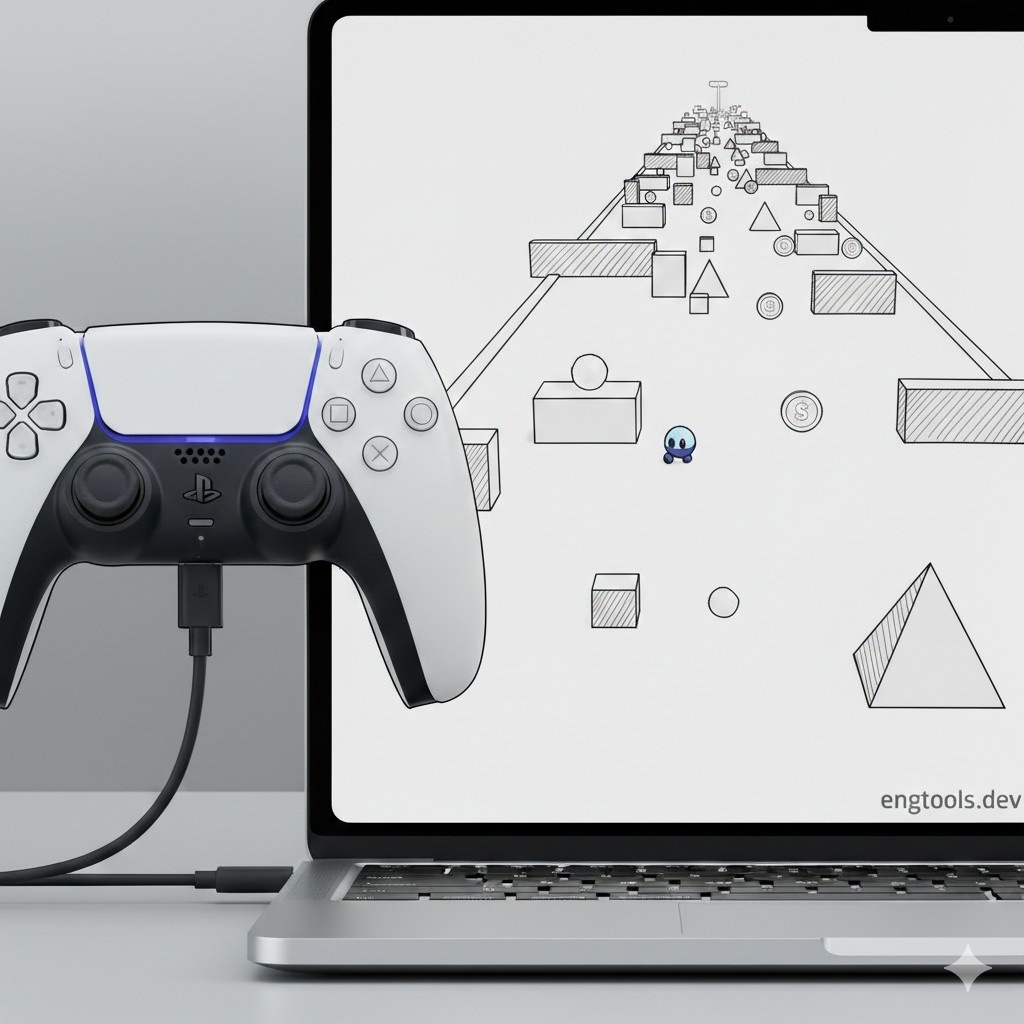
I liked the idea of a game you play on your PC or laptop using a console controller—no Steam, no launcher, just open a webpage and plug in the pad. So I set out to build one, with help from AI along the way. This post is about that idea and how I did it, using my game Dodge Run as the example. The same approach works for other controllers too (e.g. Nintendo Switch Pro Controller, Xbox) as long as the browser supports the Gamepad API.
The idea
I wanted:
- A game that runs in the browser—no install, no store.
- Controller-first: play with a PlayStation (or other) gamepad, with keyboard as a fallback.
- Something small enough to read and tweak myself, without a big engine or build step.
That led me to: HTML + vanilla JavaScript + a 3D library (Three.js), and the Gamepad API so the browser could read the controller. Dodge Run is the result: you move with the left stick, dodge obstacles, grab collectibles and power-ups, and try to survive and score. The details of the mechanics aren’t the point here—it’s the concept of “browser game + console controller” and how I structured the project.
Why the browser?
The browser gives you a lot for free: a window, a canvas to draw on, audio, and—importantly—the Gamepad API. You don’t need a game engine or native code. You write JS, open the page (ideally over HTTP so ES modules work), and the same project can run on different machines. For a small hobby game, that was exactly what I wanted.
The Gamepad API: the main concept
The core idea is: the browser can see your controller. Modern browsers expose it via navigator.getGamepads(). You get a list of connected gamepads; each has:
- Axes – e.g. left stick X/Y as numbers from -1 to 1.
- Buttons – each button has a
pressedstate.
There are no “button down” events. You poll once per frame in your game loop: read getGamepads(), read axes and buttons, and feed that into your game (e.g. movement, pause, start). Controller layout (which index is “Options”, which is “A”, etc.) is standardized enough that you can map one set of indices to “move”, “pause”, “start”, and use the same logic for different brands of controller if you want.
I also added a keyboard fallback: the same actions (move, start, pause) are bound to keys. So the game works with or without a controller. That’s a small amount of extra code and makes the game playable for everyone.
How I structured the project
I didn’t use a framework. I split the code into modules (one file per concern):
- Input – One module reads the gamepad and keyboard and exposes simple functions: “what’s the movement this frame?”, “was start pressed?”, “was pause pressed?”. The rest of the game doesn’t care whether input came from the pad or the keyboard.
- Game loop – One place that runs every frame (using
requestAnimationFrame), advances the game by a time step, and then draws. That’s the heartbeat of the game. - States – The game has a few big states (menu, playing, paused, game over). The loop checks the current state and does the right thing (e.g. only run gameplay when “playing”). That keeps the flow clear.
- Rendering – I used Three.js to draw the game in 3D even though the gameplay is 2D. That’s a choice; you could use a 2D canvas instead. The important part is that rendering is separate from “what the game logic decided”; the loop updates the game, then tells the renderer what to draw.
So the main concepts are: one input layer (gamepad + keyboard), one loop (update then draw), and clear states. Dodge Run is just one example of that structure.
A few things I had to handle
- User gesture – Browsers often require a click or key press before playing audio (and sometimes before the gamepad is fully active). So the game doesn’t start until the player clicks or presses a key once. That’s a small UX choice that avoids fighting the browser.
- Dead zone – Controller sticks don’t always sit exactly at zero. I treat small values (e.g. below 0.15) as zero so the character doesn’t drift.
- Serving the game – ES modules and the way I load scripts work best when the page is served over HTTP (e.g.
python3 -m http.serveror a simple static host). So “run a local server” is part of the setup.
None of this is exotic—it’s the usual kind of plumbing when you bring a console-style controller into a browser game.
Haptic feedback
The Gamepad API can also drive your controller’s vibration. Many gamepads expose a vibration actuator (e.g. gamepad.vibrationActuator); you call something like playEffect('dual-rumble', { duration, strongMagnitude, weakMagnitude }) to trigger a rumble. In Dodge Run I use it for collectibles, collisions, near misses, and level-up so the pad gives a bit of tactile feedback. Support varies by browser and OS—haptics often don’t work in browsers on macOS, for example—so the game still plays fine without it. If your controller and browser support it, it’s a nice extra.
You can do the same with another controller
The Gamepad API isn’t tied to PlayStation. Nintendo Switch Pro Controller, Xbox pads, and others show up as a gamepad in the browser too. The axis and button indices can differ slightly between devices, but the idea is the same: poll each frame, map indices to “move”, “jump”, “start”, etc., and feed that into your game. You can look up “Gamepad API button mapping” for your specific controller and add a small mapping layer so one codebase supports multiple pads.
In short
I wanted a small game you could play on PC with a PlayStation controller, without installing anything. I built it in the browser with JavaScript (using AI to help with structure and code), used the Gamepad API for the controller and a keyboard fallback for accessibility, and kept the structure simple: one input module, one game loop, and clear states. Dodge Run is my concrete example, but the approach—browser + Gamepad API + simple loop and states—is what I’d recommend to anyone trying the same thing, including with a Nintendo Switch or other controller.